
Nothing irritates me more than a seemingly unsolvable problem, yet nothing pleases me more than figuring out a solution. I suppose that’s why I’m in this role. Today I had a problem that I couldn’t google my way out of but with the help of a fantastic colleague – Jeff Hirl – and a bit of stubbornness (or let’s call it persistence for positivity), I solved it. And I want to share with you so you won’t have to go through the turmoil I just did!
Now I am trying to lean this blog more to the Customer Insights realm and while this is seemingly more Sales related, it is actually a combination of the two. Because really, sales and marketing go together and when you use the tools of each app, they work very nicely as such. In this case, my client is implementing the lead scoring and marketing qualification features of Customer Insights – Journeys. But then the next step of course, was how do we get those assigned fairly? The obvious answer was to use the Sales accelerator work assignment tools. These are great as they allow automation from the UI just like Customer Insights – Journeys, empowering sales folks to manage their own business without needing development each time (or manually assigning). That said, what if your rules are somewhat…unique?
Microsoft is great for designing to the majority cases but as you probably know, most companies have their own “twist”. In this case, the sales team users do not own the contact or account records but merely the leads and opportunities. When they assign leads manually, they would perform a variety of searches to determine who may currently be working with this contact (open opportunities) or has recently worked with them (closed opportunities in last x months). If these searches come up with any matches, the lead is assigned to that seller. If not, the leads are distributed in a round robin fashion. Since this is still based on data in the dataverse, I felt confident I could recreate this with lead assignment rules.
In my assignment rule, under “Assign these leads to a seller, team, or queue”, I selected Sellers with matching attributes > Use existing fields from seller records in Dynamics 365. This provided me with the standard filter query most seasoned users are extremely familiar with. We know this is a FetchXML query behind the scenes. In order to find the user who owns opportunities with the potential customer equaling the parent contact of my lead, I started with this:
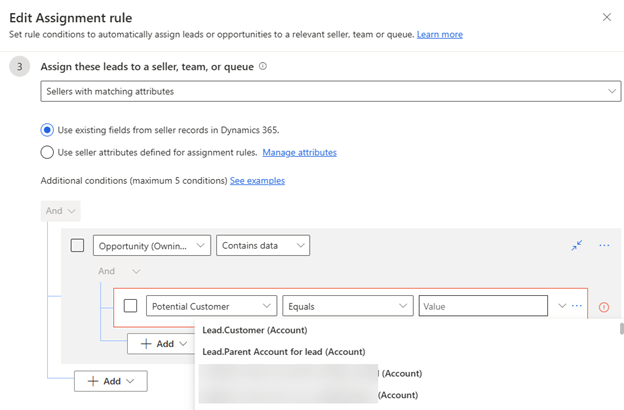
Notice, however, that it does not provide me with the Lead.Parent Contact for lead (Contact). How frustrating! Try as I might, this option was not available, even though I know that field allows either and in my client’s case, they use contact. Thus, the googling commenced…fruitlessly. After a bit of time, I decided to pester my team. This is when Jeff Hirl alerted me to the table which contained the FetchXML. I quickly jumped into powerapps to view that table and make my updates.
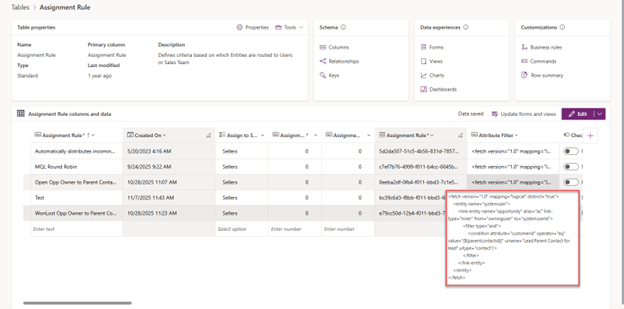
I actually used that Lead.Parent Account for lead (Account) to initiate my FetchXML and then modified it to be contact-centric as I prefer to work smart instead of hard (I’m not an author but an editor!). Excitedly we tested…immediately saddened by the lack of expected results.
I tried many troubleshooting methods cheered on by Jeff. First, I tried to understand the engine behind the logic combing through the cloud flows and plugins. Seemingly a plugin, I turned on the trace but got nothing interesting. The only “error” I could find lied within the UI again under the “Monitor” menu which was underwhelming.
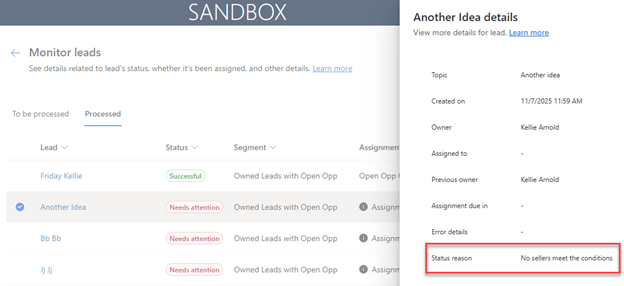
I tested my logic with the out of box Lead.Parent Account for lead (Account) and it worked like a charm which only irritated me more. I refused to give up. I combed through the tables again and eventually, guess what I found? There was another filter field…containing the exact same FetchXML as the Attribute Filter but this one is called Seller Filter which made even more sense. I felt sheepish but hopeful this was my answer. I made those same updates to that filter and…it worked!
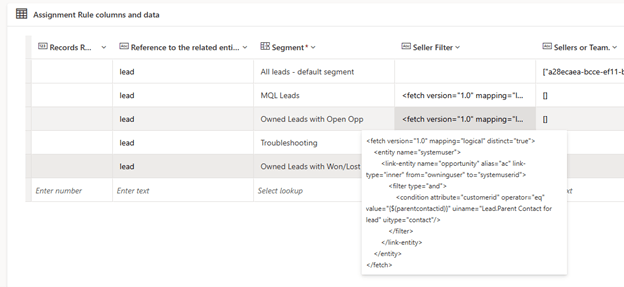
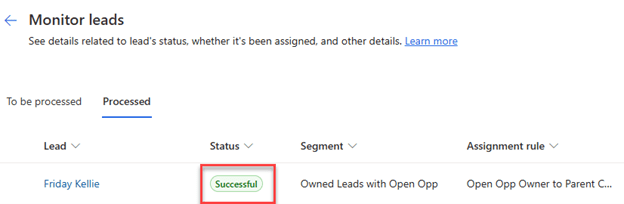
Technical folks will be likely be laughing at this point, but I am triumphant. And yes, while this turns out to be not as upfront UI setup as supposed, it is still allowing sales management to self-govern without need for developers or behind the scenes cloud flows (which could absolutely be used instead should this not suffice). I learned a lot about this tool and hopefully this helps you! If you have any other lead assignment tricks you’d like to share, I’m all ears!
 First Pancake D365 Consulting