

Any seasoned consultant will tell you that it’s generally considered best practice to make copies of your configuration objects before customizing as Microsoft will continue to push updates which may alter the behavior in a way that would be disruptive. This allows you to avoid those disruptions and add new features as they fit your business. Also it’s best to publish these custom configurations under your publisher prefix so that it is clear who created them throughout the life of the environment. While this is easy to accomplish with some objects such as custom tables, columns, etc., it is a bit of a pain when it comes to business process flows, particularly if you are not a developer. So for all you non-developer yet tech-curious functionals, here’s my step by step on how to do it.
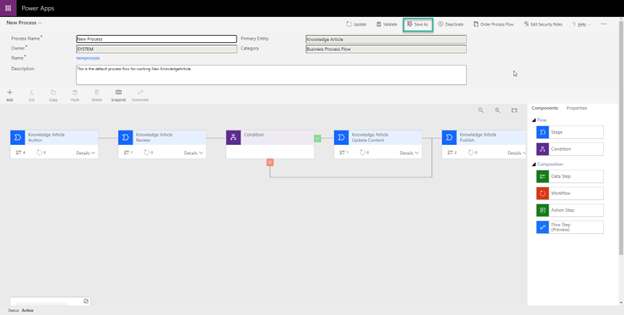
- Open the out of box business process flow and Save As
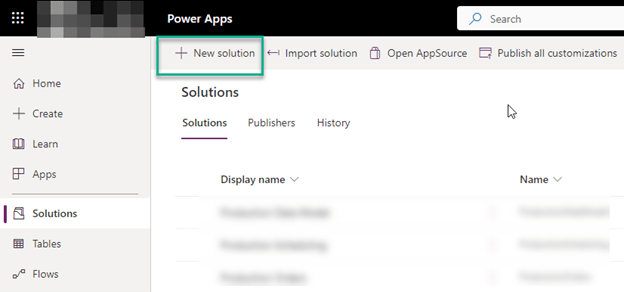
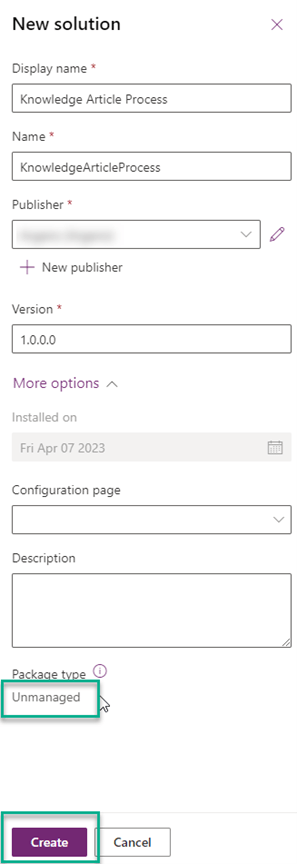
- Create a new unmanaged solution
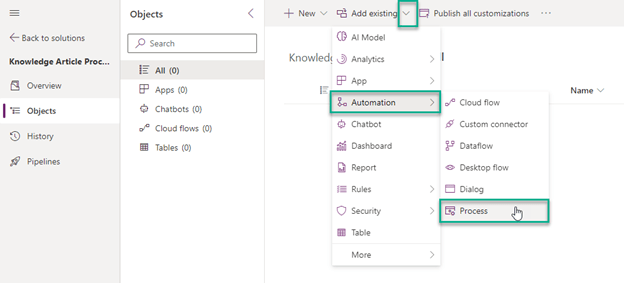
- Add the new business process flow to the new solution
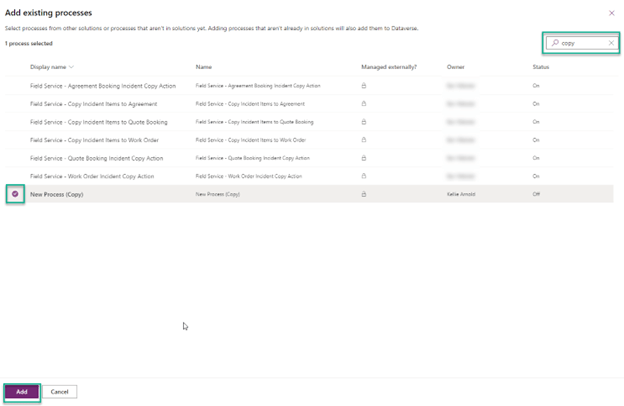
- Rename the business process flow


- Activate the new business process flow to create the associated table


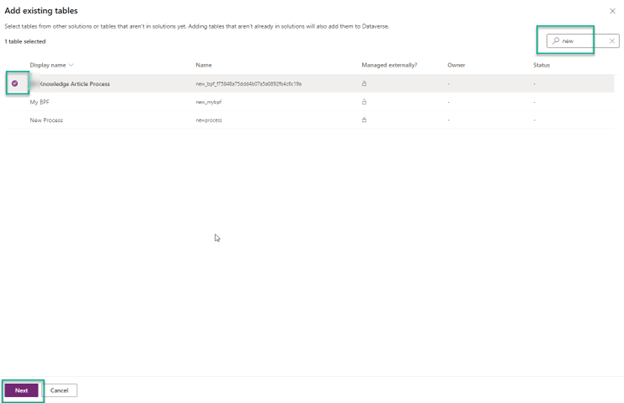
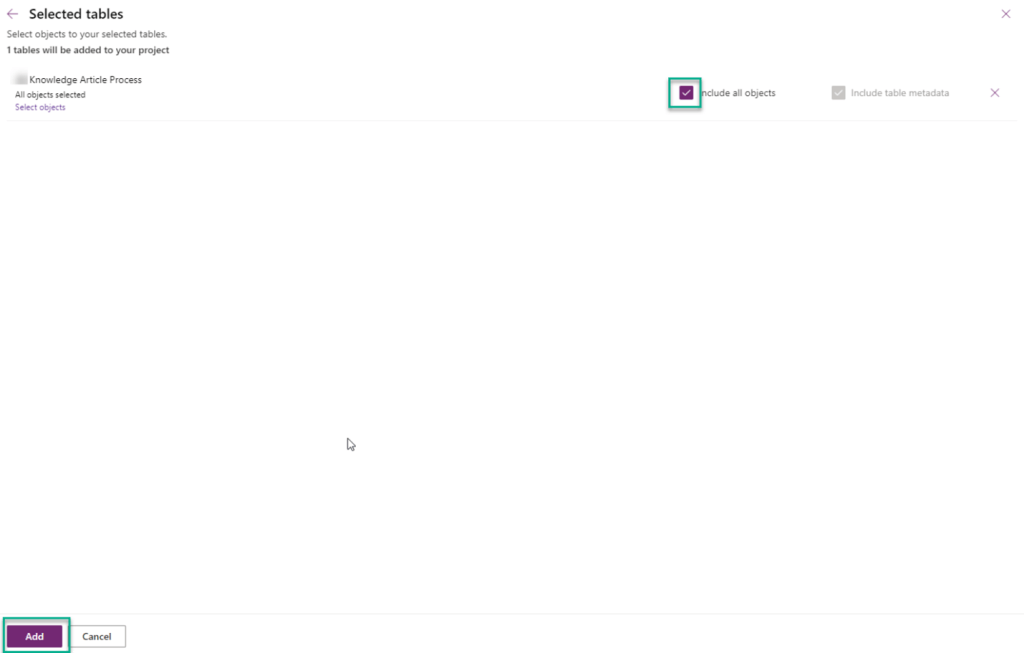
- Add the associated table to the solution (include all objects)

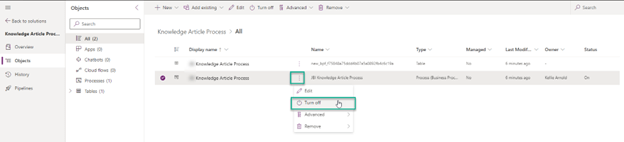
- Deactivate the new business process flow
- Export the solution as unmanaged


- Download the package

- Unzip the package
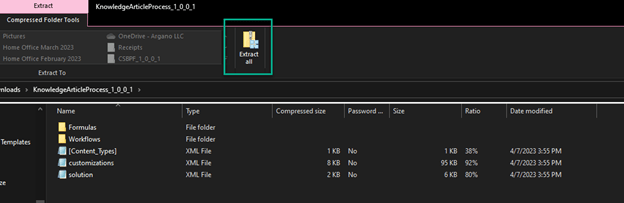
- Open the solution with Visual Studio and replace the prefix “new_” with your prefix

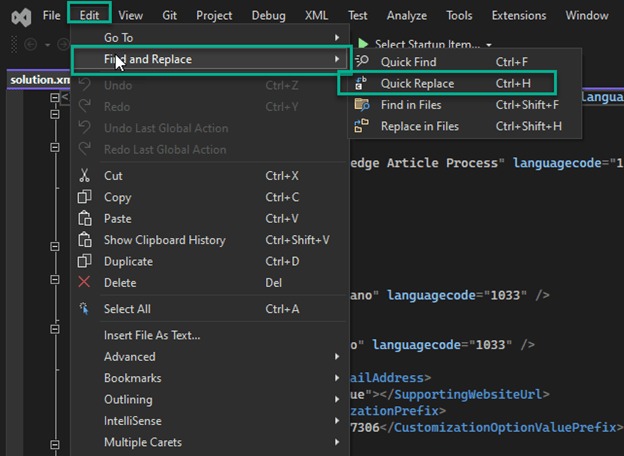
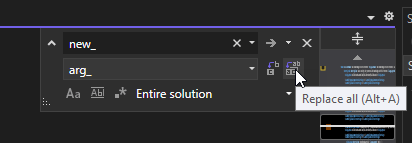
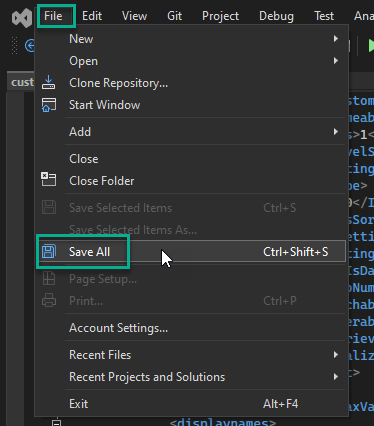
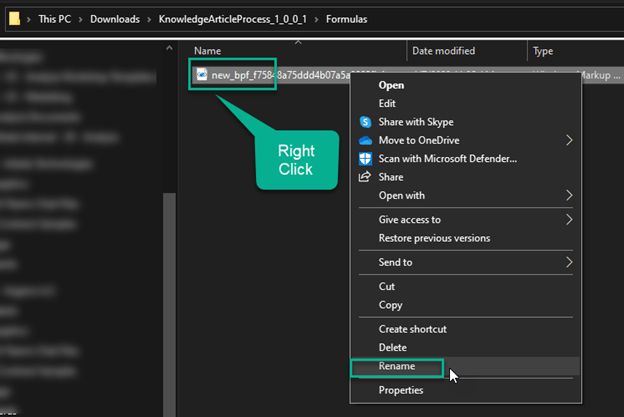
- Rename the file in the “Formulas” folder replacing the prefix “new_” with your prefix

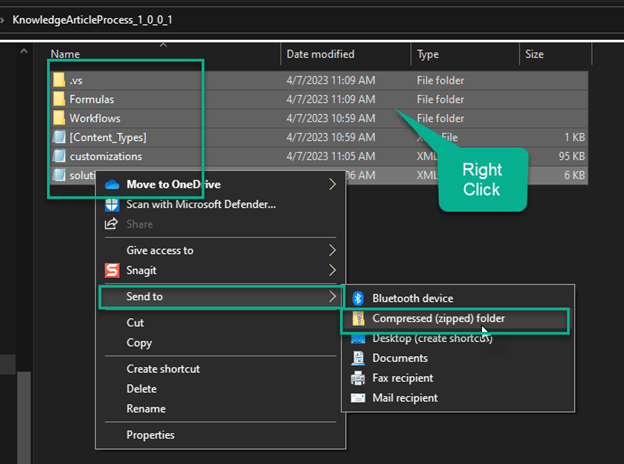
- Zip the new solution
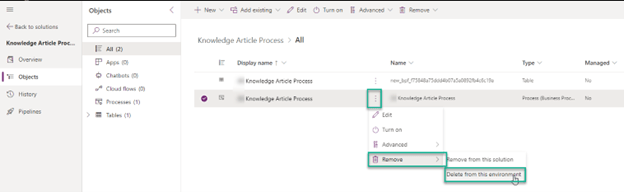
- Delete the process from the environment (This will also delete the associated table)
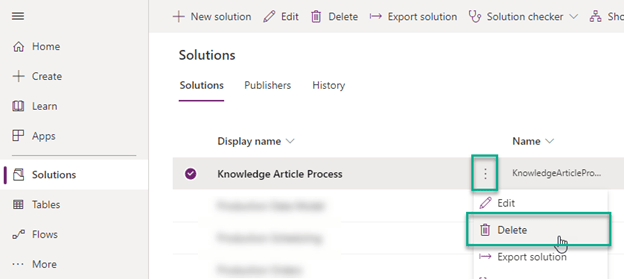
- Delete the old solution

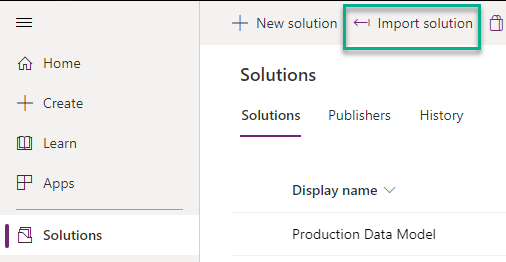
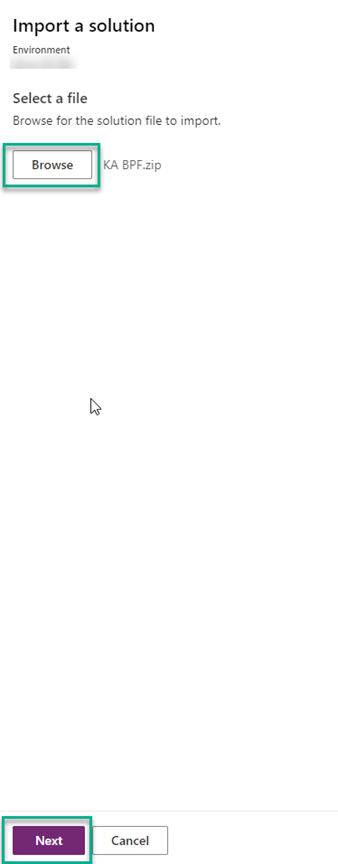
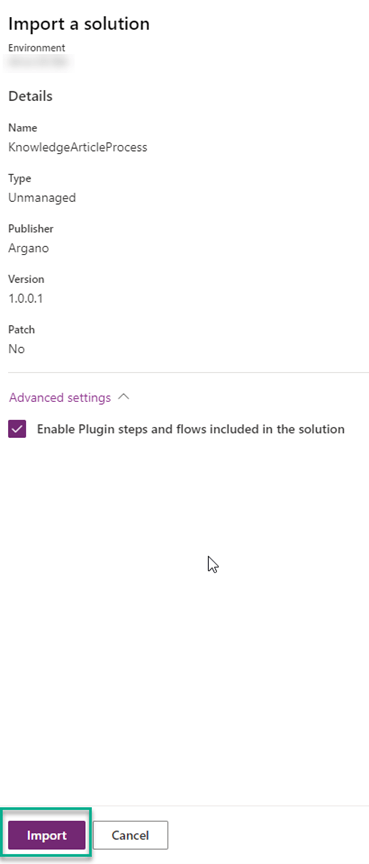
- Import the new solution
- Publish all customizations in your new solution

Hopefully this was helpful! Special thanks to Matt Parks who helped me learn. If you have other ways of doing this, please share in the comments.
 First Pancake D365 Consulting