

What is it?
Attributes Factory is an XRM Tool that allows you to create columns on a dataverse table in bulk from a spreadsheet.
How do I use it? Here are my steps.
- Install XRM Toolbox and the Attributes Factory Tool if you haven’t already
- Open XRM Toolbox and connect to your desired environment
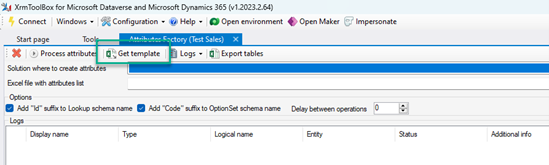
- Download the template for the spreadsheet
- Set up your solution with your publisher and prefix if you haven’t already
- Create any custom tables in that solution if needed and/or add existing tables that you will be creating columns for to your solution
- Save the template as your own and fill it out with your desired columns to be created. Use my examples for guidance (note – not ALL possibilities are provided as examples).
- Save and close your spreadsheet
- Update Attributes Factory with the solution, file and options as desired
- Adding Id and Code suffixes are best practice; however I added those myself to the schema name as I prefer lower case
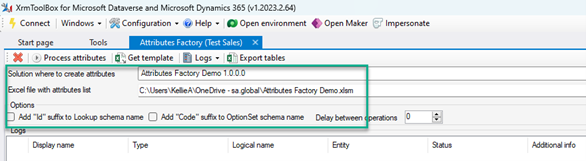
- Click Process attributes
- Wait for completion and view logs
- Address any errors
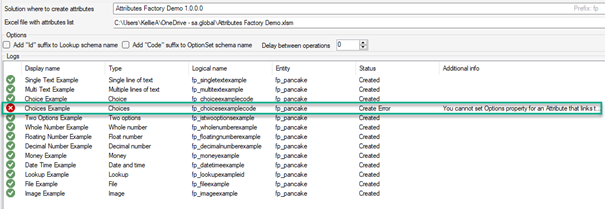
- Notice my error for choices…this is due to it being created as a global choice while also creating the column on this table. To fix this you can simply update your spreadsheet for that line by removing the options and reprocessing.
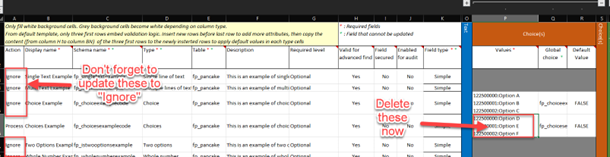
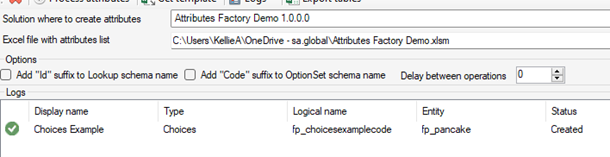
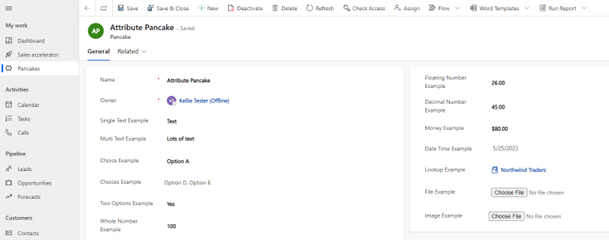
- Now you should see a successful creation
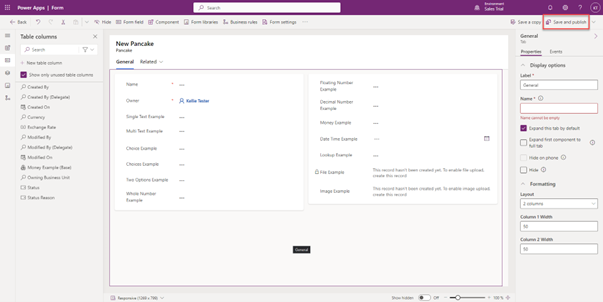
- Navigate to your form in the solution to add the columns as needed
- Test

When Might You Use This?
As it does take a bit of setup and care, it’s likely not going to be something you use when you are adding a few columns here and there. This is a tool for a bigger lift, particularly in situations where you have tens, hundreds or dare I say thousands of columns that need creation due to a large implementation, an integration or data migration. And while it takes a bit of setup, once done, it’s fairly simple to keep using, particularly for updates (on items that CAN update). It’s also quite nice for documentation.
When Might You Avoid This?
I’ll be honest my coworker, Shelby Schmitt (amazing consultant, highly recommend!) was NOT a fan. In her words…”I hate it!”. Fair enough! She was adding less than handfuls of columns at a time and it was not faster than creating manually. So why waste that time? Also we had a lot of trial and error in the beginning trying to figure it out and thus it was more time-consuming. I am hopeful that my examples will help a fellow functional like us save those precious hours.
Final Items To Consider!
Again this tool is powerful and I certainly didn’t cover all the aspects. For instance, I also created calculated and rollup columns with it. They created but of course I had to still go in and add my formulas. Another thing to be aware of – for choice(s), you will need to determine your value range to get started. That said, you can reuse values in that range for the various choices! Finally you can name your relationship on lookup tables yourself! No more funky names automatically created if you don’t desire. I’m excited to hear if this helps you and/or any other tips and tricks you have regarding this tool.
Special thanks to Matt Parks who introduced this tool to me and worked with the developer to improve it for our project!
 First Pancake D365 Consulting